


My shelf count did not match the number in my records. A stock take tells you which number is right. In an online shop, the orders keep arriving while you count.
What is a stock take and what does it cover?
A stock take is a full count of every product you hold, compared with the numbers in your records. Some people write it as one word, "stocktake". It covers stock on the shelves, in boxes, and in any storage room. The count shows the gaps that orders cannot explain, such as damage, loss, and a miscounted delivery.
The result also gives your accounts a closing stock figure for the end of the year.
How often should you do a stock take?
The choice is yours. Each rhythm does a different job. A full count once a year, at the end of the financial year, gives your accounts a true closing figure. A count before your busy season means you start the rush with numbers you trust.
Cycle counting is the other option. You count a small group of products each week, instead of everything on one day. Over the weeks, every product gets a count. The shop never stops for a full day.
How do I count stock when web orders are still arriving?
The gap during a count is usually orders that are paid but not yet packed. In WooCommerce, a Processing order is paid, and stock has been reduced. An On hold order also reduces stock. The item has left your stock number, but it is still on your shelf.
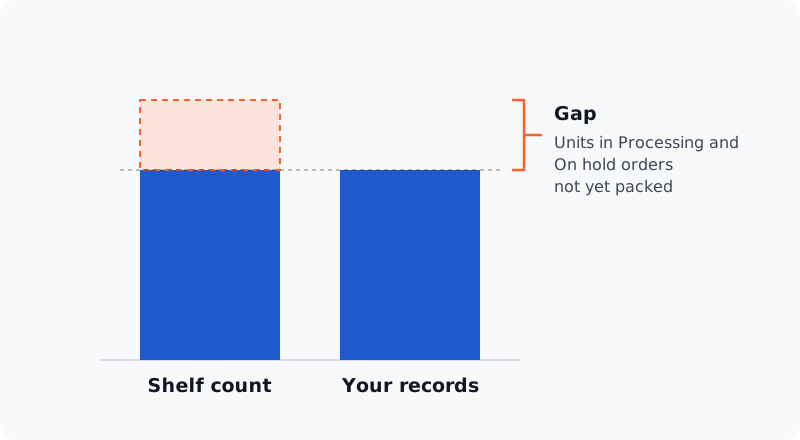
So a shelf count is higher than your records by the units in those orders. You have two options:
- A quiet time. You can count early in the morning, so fewer orders are open.
- Open orders off the count. You can list the unpacked orders and subtract their units from your shelf count before you compare.
Inventory Alpha can combine the orders you select into one pick list built from your orders. The list has one row per product, with the quantities summed across every selected order. Its QTY column is what is left to pick after refunds.
How do I run the count itself?
You can give every shelf one counter and one count sheet, so no shelf is counted twice. A count sheet is a paper or spreadsheet list with one line per product and space for the number.
You can also set up the count in these ways:
- Areas. You can split the stock into areas, with one person for each area. A missed shelf is then easy to spot.
- A blind count. You can hide the figure in your records from the counter, so the sheet shows what is on the shelf.
- Variations. You can give each size or colour its own line, because each one can have its own stock.
- The start time. You can record the time the count started. You can then match it to the orders that were open.
How do I record a stock take in WooCommerce?
After I count stock, I record the changes as a stock adjustment. In Inventory Alpha, one stock adjustment is a batch. Each line names one product and one quantity change. The whole batch saves, applies, cancels, and deletes as one record.
To record the count:
- Add the products you counted with the product picker.
- Type each counted number into New Qty.
- Check the difference that Adjust Qty shows.
- Type the reason for the change into the note.
- Select Save to keep the batch as a draft.
- Select Complete Adjustment to change your real stock.
You can also type a change, such as +20, into Adjust Qty. New Qty then recalculates. While the batch is a draft, it moves no stock. You can reopen and edit a draft.
I fixed stock numbers with no note of why they changed. Each adjustment has one free-text note, stored on the batch and shown on the finished record. There is no note on each line.
You should now see each applied line in the movement log. Its Action Type reads Adjustment, with a link back to the batch. Read more about stock adjustments.
What do I do when the count does not match the stock number?
When a stock number looks wrong, I check the movement log. The movement log shows each recorded stock change, with the old quantity, the change, and the new quantity. That tells you what moved the number before you correct it.
I did not know who changed a stock number: me, a member of staff, or another app. Each row in the log answers two questions:
- Where the change came from. A stock edit made outside the plugin says where, such as "Stock changed on the product page" or "Stock changed by another app (through the WooCommerce API)".
- Who made it. The User column is never blank. It shows a login, the buyer,
guest, orsystem.
The log has nine filters, such as Date, SKU, and Action Type. They combine, and nothing changes until you select Apply. To trace one product, you can filter by its SKU and the dates since your last count.
How do I count products with variations?
Each variation with its own stock is its own line in the count and in the adjustment. In the product picker, each variable product sits in one box under its parent name. Its variations sit inside, named by what makes them different, such as "Blue, Small".
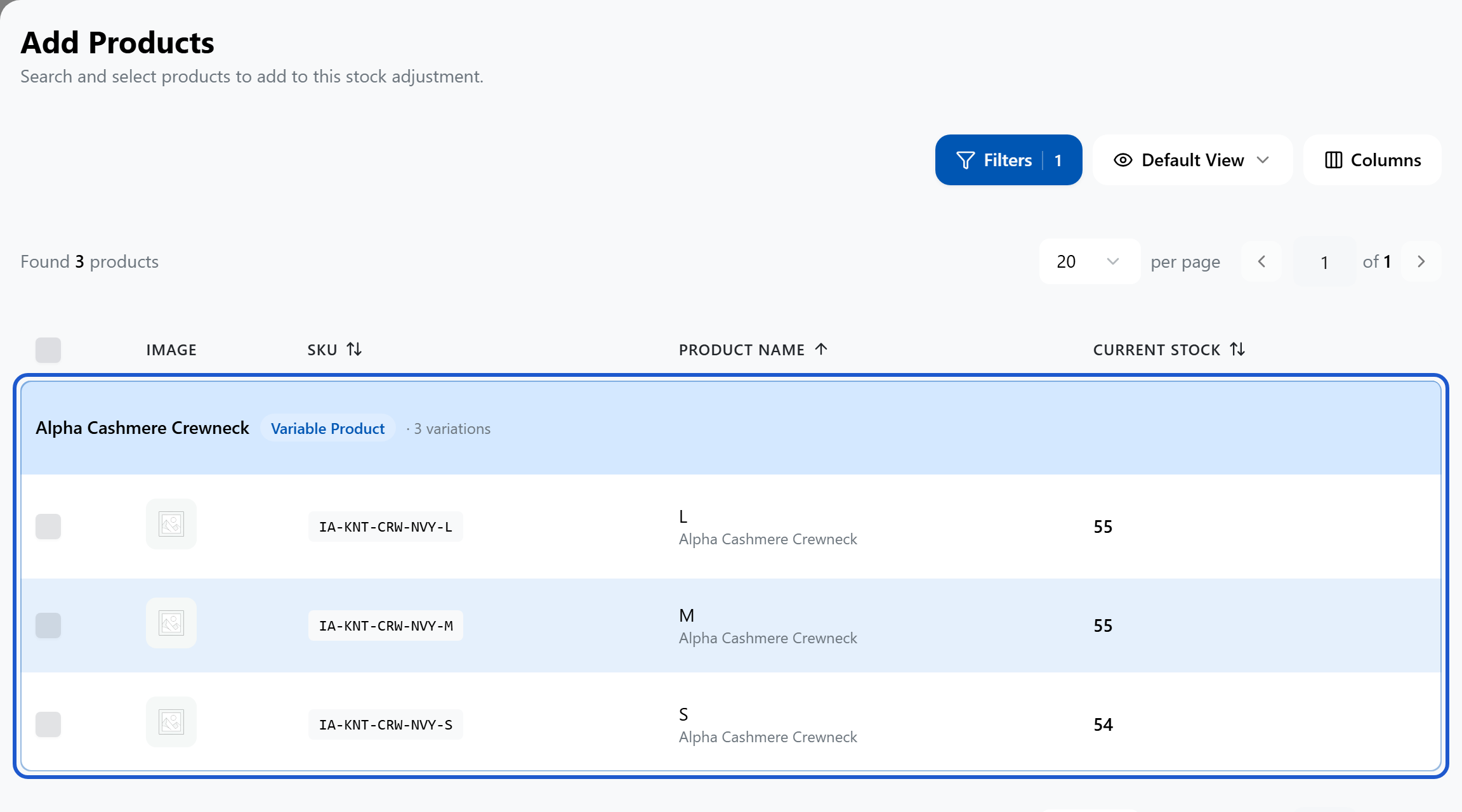
Some variations share their parent's stock. Inventory Alpha refuses that line. Its message asks you to adjust the parent instead.
A variable product that does not keep its own stock is refused too. Its message ends "Adjust its sizes instead." Either way, the message tells you what to adjust instead. Read more about stock levels for each variation.
What to do next
When your next stock take is done, see what else Inventory Alpha covers.